Users appears in the menu for company admins. It is where you decide who in your company can use the Hub and what they see.
Account types
- Company admin — full access to all company data; can add users and set managers.
- Company access — full access to company data and can action all items, but does not manage users.
- Manager — sees and submits only for their downstream: the supervisors assigned to them. Managers can themselves report to a more senior manager.
- Supervisor / framer — pre-approved to sign up because their email is already in Buildsafe's system. They appear greyed out until they sign up, and see only their own jobs.
The legend at the top of the page repeats this. The chips underneath filter the page: tap Admins, Company access, Managers or Supervisors to see just that group, and tap it again to see everyone. All four are always there, each with how many people it has — even when that is none — so a type never seems to go missing.
The company's name sits under the Users title, so you can check whose team you are looking at.
Inviting someone
- Tap Invite user.
- Enter their email.
- Choose Company admin, Company access or Manager only.
- Tap Send invite. They receive an email with a link to set a password. Until they do, they show as Invite pending and you can resend it.
- For a manager, the next step is to choose them as the manager for their supervisors under Supervisors and their managers. Tap Go to supervisors to jump there, then tap Manager beside each supervisor and pick their email — it shows with Invite pending. You don't have to wait for them to accept; they see those supervisors' jobs as soon as they do.
Already accepted before you chose? They stay in your team list as a Manager, even with no supervisors yet. Pick them as the manager beside each supervisor to give them some.
If the email you invite as a manager already has a Hub login that isn't linked to your company, you'll be asked to Assign supervisors straight away. That is what adds them to your company. After that, make changes under Supervisors and their managers like anyone else.
Your team
The team section lists everyone with a Hub login and every pending invite. Each row shows:
- Status — Active, Deactivated, Not yet active (they have an account but never set a password) or Invite pending with how long the invite has left and whether we have reminded them. A manager's pending invite also shows how many supervisors they will manage.
- Last seen — when they last used the Hub, in plain words ("2 hours ago", "Yesterday").
- On phone — a small tag when they have used the Hub from a phone or the installed app.
- Passkey — how many passkeys they have set up, or a dash.
- Digest — whether the daily digest email is on for them.
Use Show: Not yet active above the list to see only the people who have not finished setting up, so you know who to chase. From a row you can make someone an admin (or remove it), deactivate or reactivate a login or resend an invite.
Managers, and people invited as managers, have a Downstream button on their row. Tap it to see the supervisors they look after: each person's name, email and whether they have signed up, with a count at the top. If a manager looks after another manager, those people are listed too, under Through and that manager's name. The window only shows who they look after. To change it, use Supervisors and their managers (there is a link in the window).
Supervisors and their managers
The second section is your supervisors and framers as Buildsafe knows them, with who reports to whom. A supervisor's manager sees all of that supervisor's jobs. This is the one place to change who a manager looks after: one supervisor at a time, with the Manager button on each row.
It is one list of everyone, and the Status column shows whether each person has Signed up or is Not signed up yet. People who have signed up come first. Anyone not signed up yet is greyed out; their email is already in our system, so they can sign up at any time. Use Show: Signed up or Show: Not signed up yet above the list to see just one group. Beside anyone not signed up yet, tap Send welcome email to send them the link to sign up; tap it again if they lose it.
People who haven't signed up and whose name or email is missing from our records are hidden from the list. Tap Show them under the heading if you need to set a manager for one of them.
To change a manager, tap the Manager column beside the supervisor — it shows who it is now with Change, or No manager with Choose. The Choose a manager window opens with two lists:
- Managers — people who already manage someone, plus anyone invited as a manager.
- Everyone — everyone in your company with a Hub login or a pending invite.
Switch between them at the top, search by name or email, pick the person (or No manager) and tap Save. Until you have any managers, there is just the one list. You can choose a manager for someone who hasn't signed up yet, too.
Only people with a real name or a usable email are listed. Someone you have invited shows by their email with Invite pending, so you can set them up before they accept. If the invite expires or is cancelled, those supervisors are left with no manager until you choose another.
To add a manager who should not have company-wide access, use Invite user and pick Manager only.
Reassigning sites when someone leaves
Some companies also have a Reassign sites section. Use it when a supervisor leaves or changes role:
- Under Move sites from, choose the supervisor. Anyone who still has open sites is listed, even if they are no longer active.
- Tick the sites to move, or use Select all.
- Under Move them to, choose the new supervisor and tap Send to Buildsafe.
Buildsafe makes the change for you. Until it is done, those sites show Waiting on Buildsafe so they are not sent twice. The new supervisor shows on each site after the next data update.
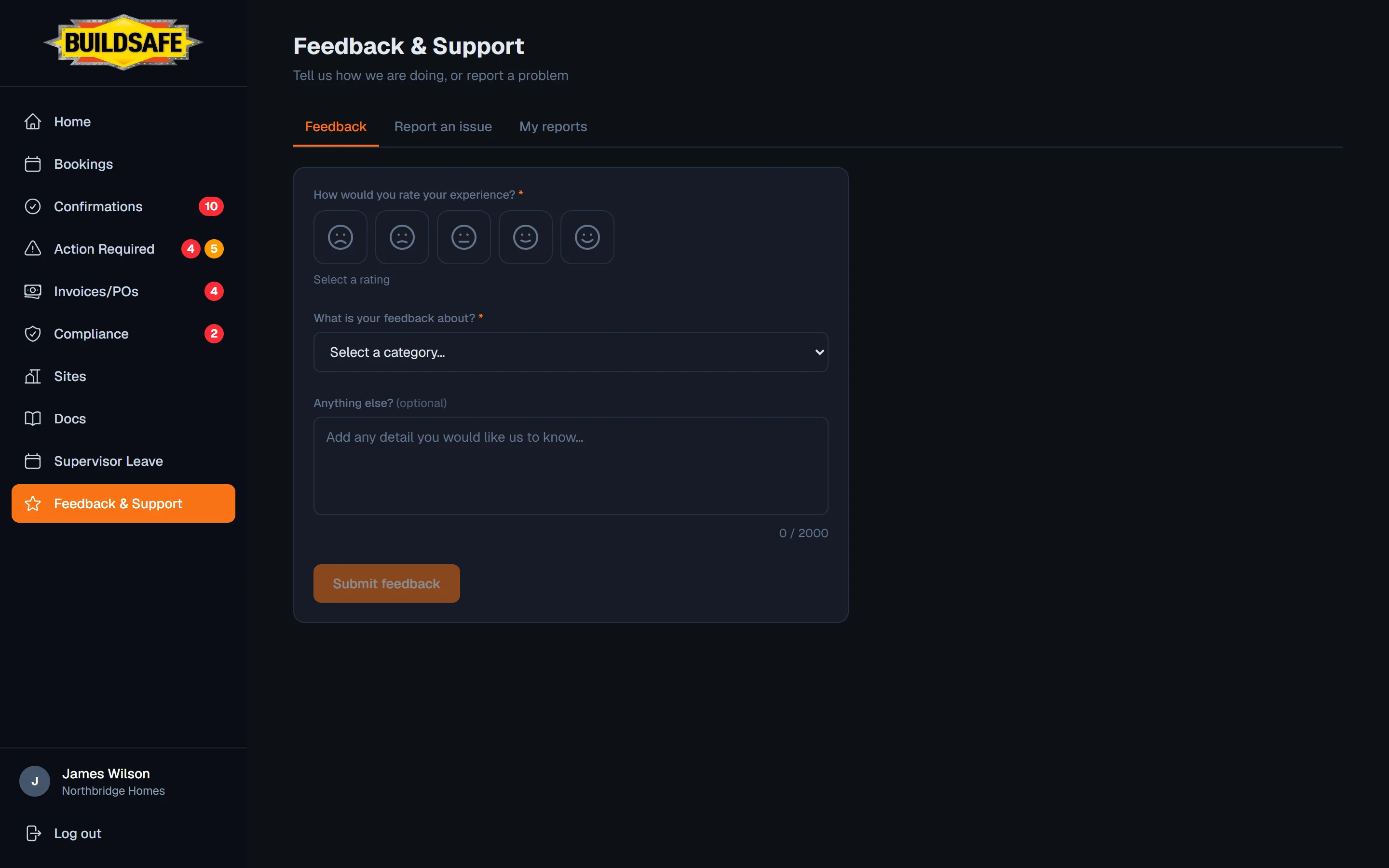
A supervisor cannot see their jobs? Check they signed up with the email Buildsafe has for them — the Hub matches on that address. If it differs, ask us to update it via Feedback & Support → Report an issue.